 North
How to Sign a PDF on iPhone
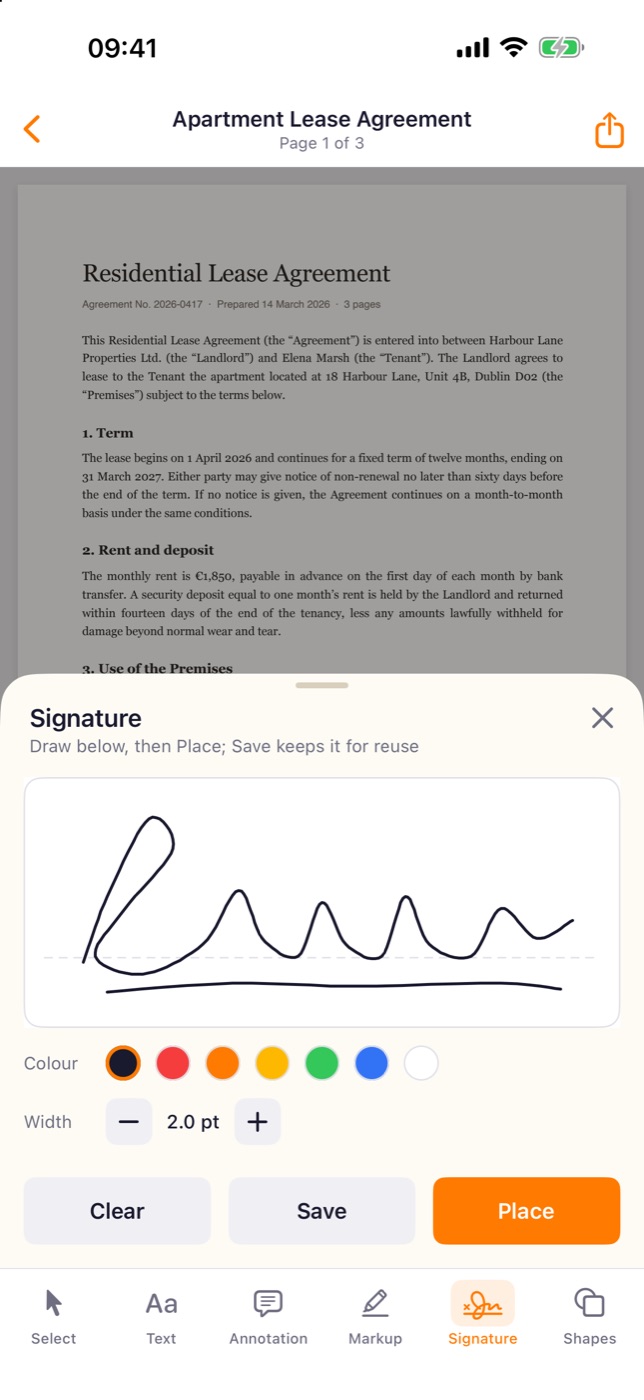
To sign a PDF on iPhone, open the document in SmartScan PDF, tap Signature in the bottom toolbar, draw your signature with a finger and tap Place. Then drag the signature to the signature line, resize it and share the file. Tap Save before placing if you want to reuse the same signature in other documents.
Sign a PDF document: step by step
- Open the document from the Library. If it is still in Files or on paper, tap Scan and choose From Files or Scan with camera.
- Scroll to the page and the place where the signature goes. The signature will land in the middle of what you see on screen.
- Tap Signature in the bottom toolbar. The Signature sheet opens with a drawing field.
- Sign inside the field with your finger. Pick the ink with the Colour dots and the line thickness with the Width stepper. Clear wipes the field if you want to try again.
- Tap Save to keep the signature for later (optional), then tap Place.
- The signature appears on the page, already selected. Drag it into position, pull the square handle at the corner of the frame to resize it, and use the round handle above the frame to rotate.
- Tap the share button in the top right corner to send the signed PDF.
Reuse a saved signature
- Open any document and tap Signature.
- Tap the thumbnail of the saved signature above the drawing field. It loads into the field.
- Tap Place.
Saved signatures are also listed in Settings → My signatures. There you can draw a new one with + ADD SIGNATURE, open an existing one to change it, or swipe it away to delete.
Find signed documents
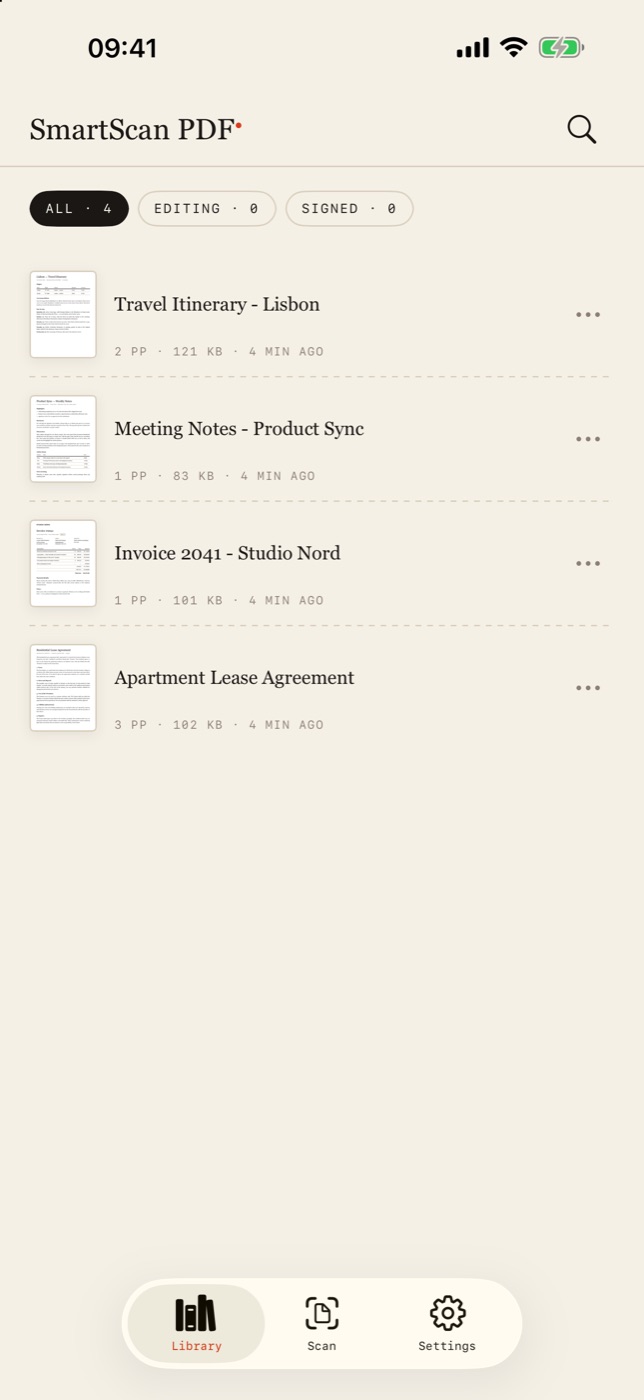
After a signature is placed, the document is marked as signed. In the Library tap the Signed filter at the top to see only those documents.
Tips and common problems
- The signature landed in the wrong place. It is an ordinary element: tap it with the Select tool and drag. The red bin button removes it, and the undo arrow at the bottom left steps back.
- The signature looks too thin or too thick. Change Width before placing. The signature is stored as vector strokes, so it stays sharp when you resize it.
- Several people need to sign. Draw each signature and tap Place without saving: placing a freshly drawn signature is not limited.
- You need a date or a name next to it. Use the Text tool, or the Annotation tool for a note on a tinted background.
What is available without Pro
Drawing and placing a signature, as well as sharing the signed PDF, do not require Pro. The free plan keeps one saved signature; SmartScan Pro keeps as many as you need.
Is this a legally binding electronic signature?
SmartScan PDF adds a handwritten signature drawn on the screen. It is not a certificate-based digital signature. Whether a drawn signature is enough depends on the document and on the rules of the party that receives it, so check with them when it matters.
Can I sign a paper document?
Yes. Scan it first with Scan → Scan with camera; the scan opens in the editor, where the Signature tool works the same way.
Where is my signature stored?
On the device, inside the app. No account is needed and documents are not uploaded.
One signature, any document. Download SmartScan PDF on the App Store.