 North
How to Scan a Document to PDF on iPhone
To scan a document to PDF on iPhone, open SmartScan PDF, tap Scan in the bottom bar and choose Scan with camera. Photograph the pages, save, and the app builds a multi-page PDF with a searchable text layer. To make a PDF from pictures you already have, choose From gallery in the same sheet.
Scan to PDF with the iPhone camera
- Open SmartScan PDF and tap Scan in the bottom bar. The New document sheet opens with four options.
- Tap Scan with camera. The iOS document camera opens.
- Point the camera at the page. The camera finds the edges of the sheet and straightens the picture. Shoot the next pages the same way: they all go into one document.
- Finish in the camera. The app shows Recognising text… while it reads the pages, then opens the new PDF in the editor.
- Tap the back arrow. The document is in the Library under the name Scan plus the date and time.
- To give it a proper name, tap … next to the document and choose Rename.
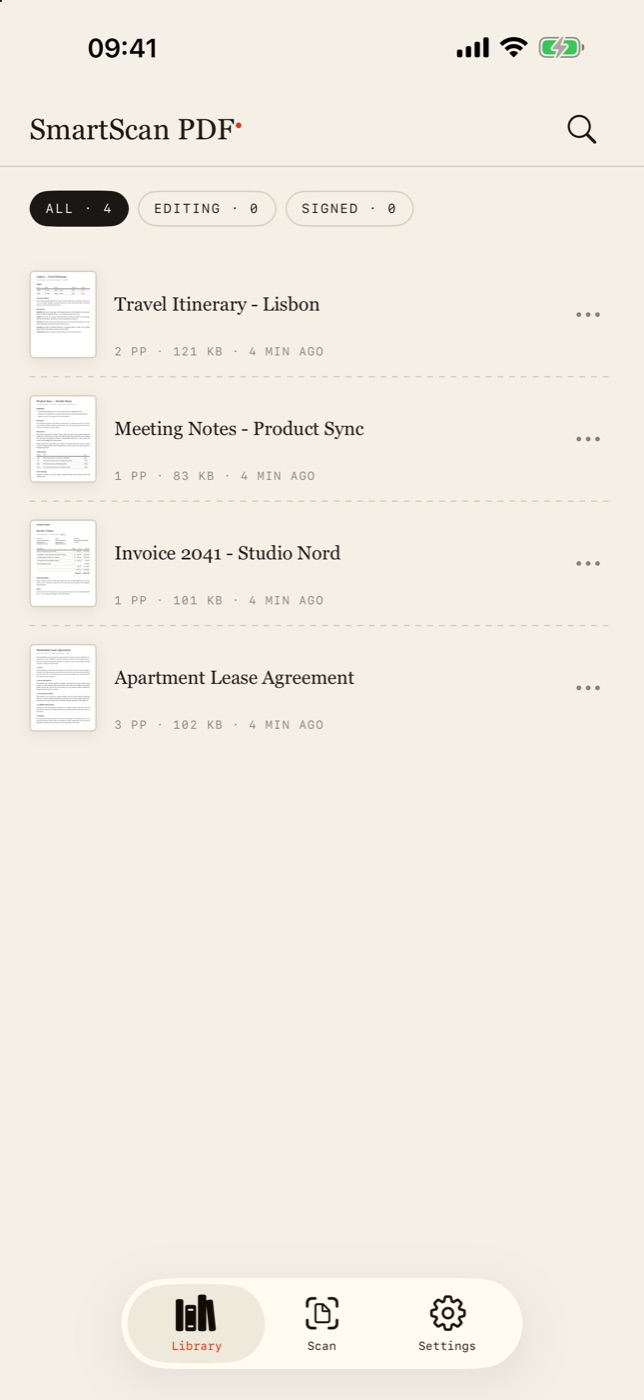
Photo to PDF: turn pictures into one file
- Tap Scan, then From gallery.
- Select one or several photos. The pages follow the order in which you tap the photos.
- Confirm the selection. After Building PDF… the app opens a document named Photos plus the date, one page per photo.
Image files stored in iCloud Drive or another folder work too: choose From Files instead. The picker accepts PDFs and images.
Add, reorder and delete pages
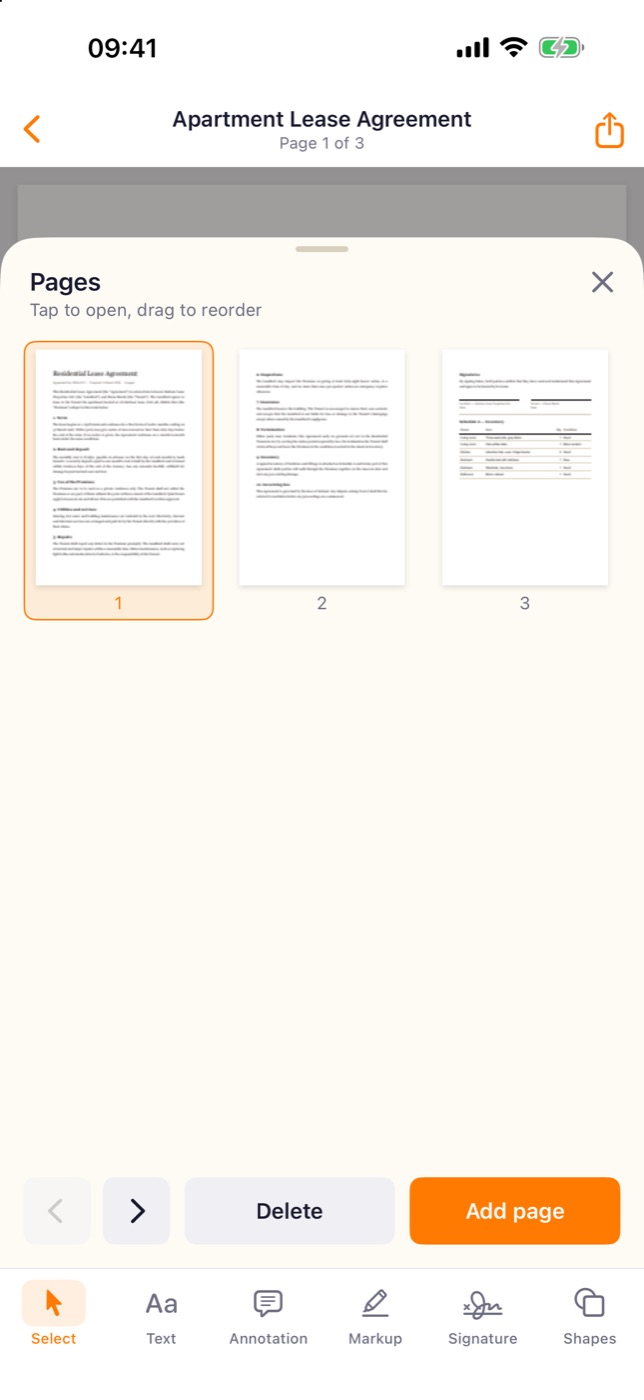
- In the editor tap the document title at the top (or the page counter at the bottom). The Pages sheet opens.
- Drag a thumbnail to reorder. Tap a page and then Delete to remove it.
- Tap Add page and choose the source: Blank page, PDF from Files, Photos from gallery or Scan with camera. New pages are inserted after the current one.
Share or save the PDF
Tap the share button in the top right corner of the editor, or … → Share in the Library. The standard iOS share sheet opens, so the PDF can go to Files, Mail, a messenger or AirDrop.
Tips and common problems
- Search does not find a scan by its text. Recognition uses the languages chosen in Settings → OCR languages. Add the languages of your documents there before scanning.
- Photos from the gallery are not searchable. Only camera scans are read automatically. Open the page and tap the round text recognition button in the right column of the editor.
- Crooked or dark pages. Put the sheet on a contrasting surface with even light, so the camera can find its edges.
- To find a document later, tap the magnifier in the Library: search covers titles and recognised text.
What is available without Pro
Scanning with the camera, importing photos and files, renaming and sharing have no limits on the free plan. Adding pages from a blank sheet, photos or the camera is open as well. Inserting pages from another PDF (PDF from Files in the Add page menu) is a Pro feature.
How many pages can one scan have?
The app sets no page limit: keep shooting in the document camera, then add more later through Add page.
Can I merge a scan with an existing PDF?
Yes, with Add page → PDF from Files, which inserts all pages of the chosen file. This option needs SmartScan Pro.
Does scanning work offline?
Yes. The scan and the text recognition are done on the iPhone.
Paper on the desk, iPhone in hand. Download SmartScan PDF on the App Store.