 North
How to Edit Text in a PDF on iPhone
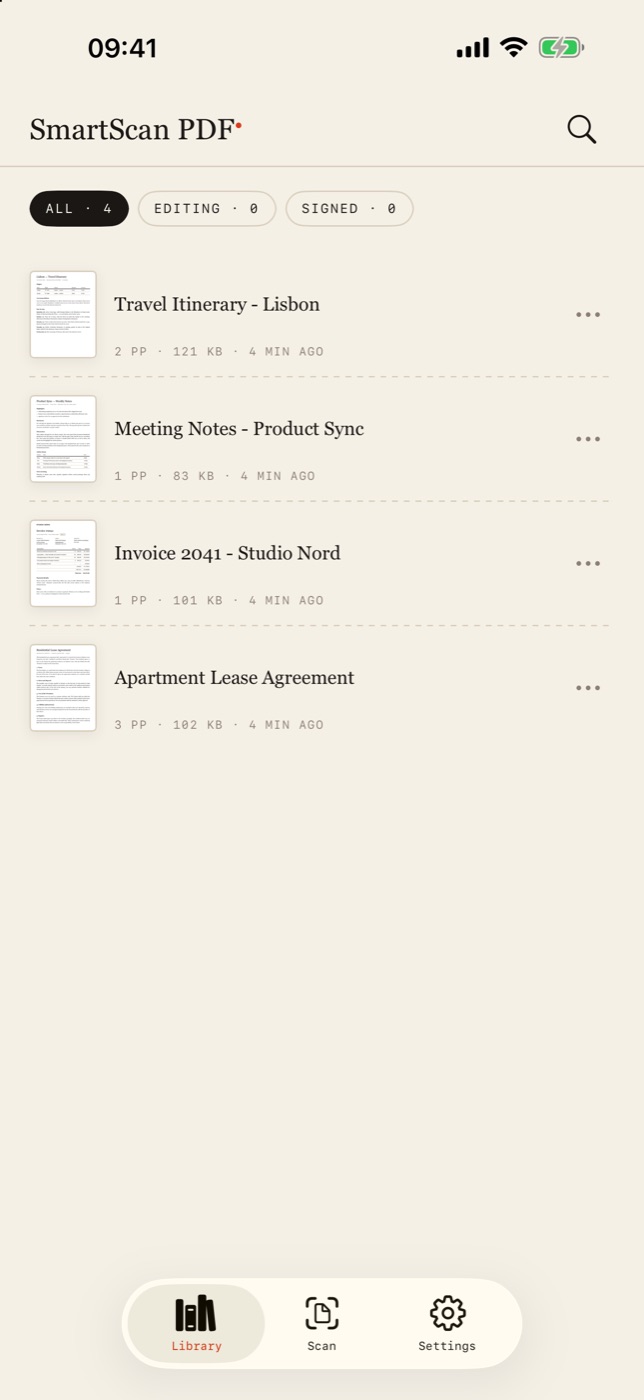
To edit text in a PDF on iPhone, open the file in SmartScan PDF, tap the line you want to change, tap the pencil button under it, retype the line and tap Apply. The app matches the font, size and colour of the original line, so the correction does not stand out. Everything happens on the device; the file is not uploaded anywhere.
Edit PDF text on iPhone: step by step
- Open SmartScan PDF. If the file is not in the app yet, tap Scan in the bottom bar and choose From Files in the New document sheet, then pick the PDF. It opens in the editor and stays in the Library.
- Make sure the Select tool is active in the bottom toolbar (it is the default).
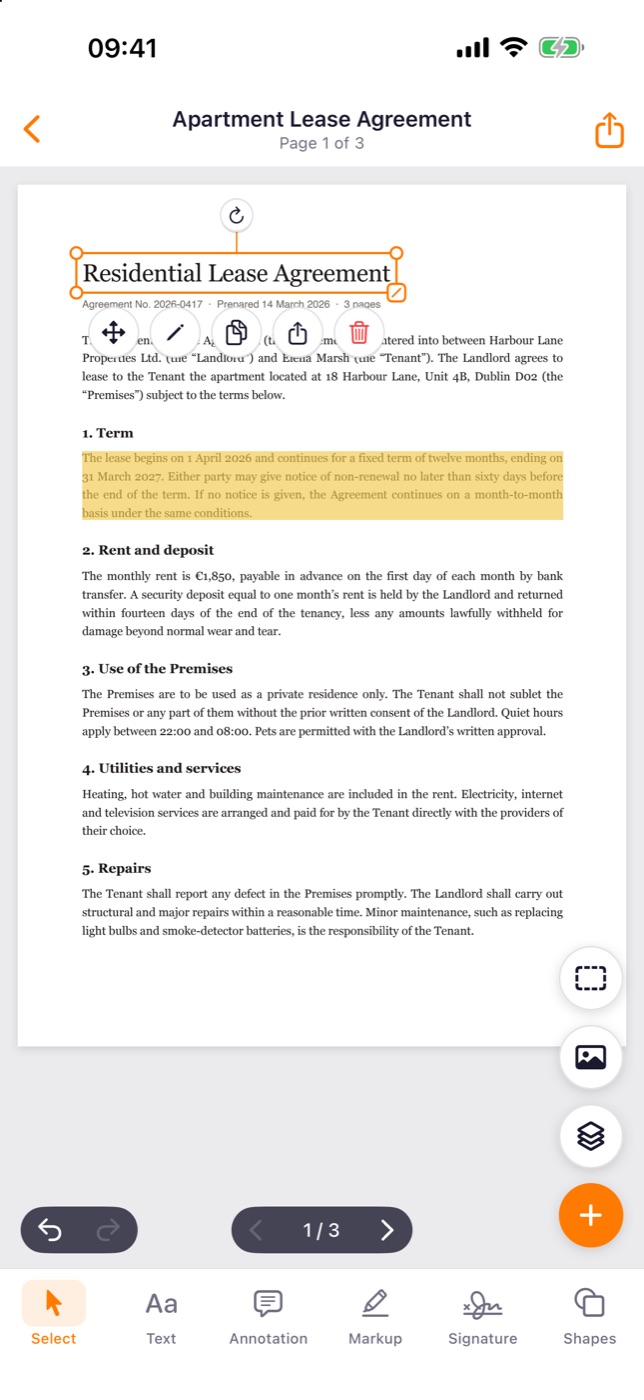
- Tap the line you want to change. An orange frame appears around it with five round buttons underneath: move, pencil, duplicate, share and delete.
- Tap the pencil. The Edit text sheet opens with the line in a text field; the subtitle shows the detected font and size.
- Retype the line. If needed, use B, I, U, S, the size stepper and the colour dots.
- Tap Apply. The page is redrawn with the new text in place of the old one.
- Tap the share button in the top right corner to send the edited PDF to Files, Mail or a messenger. Tapping the back arrow saves the document in the Library.
How to add new text to a PDF
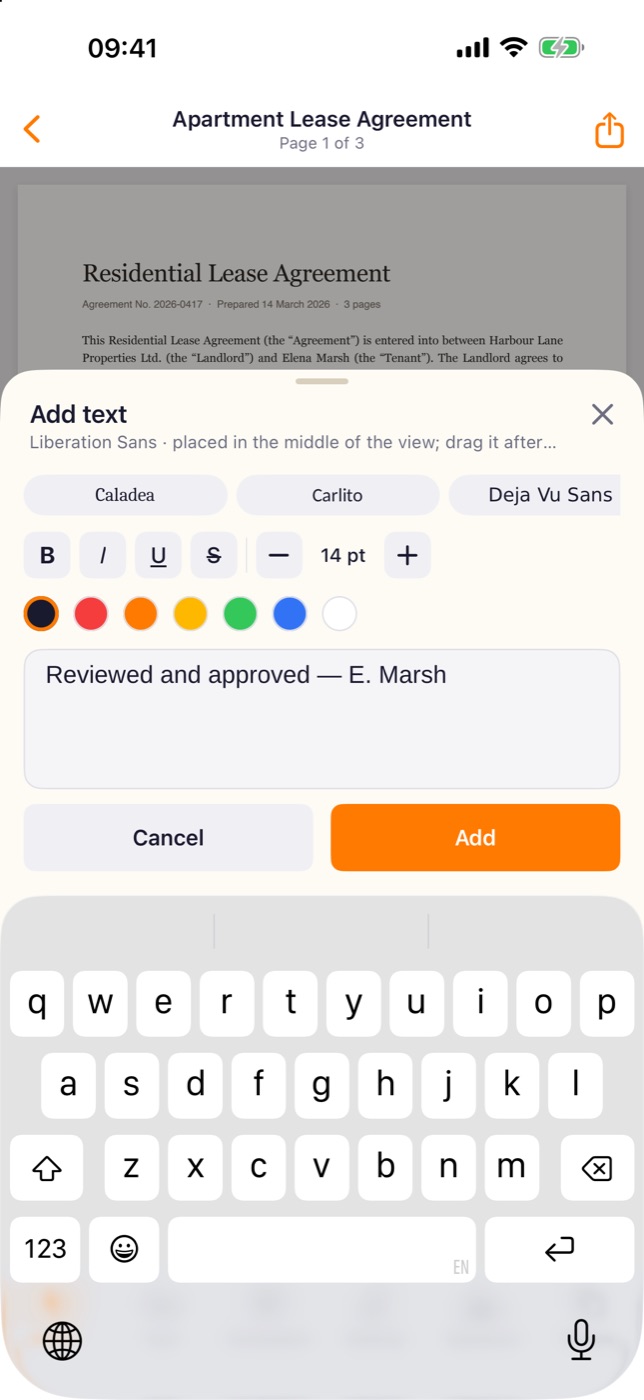
- Tap Text in the bottom toolbar. The Add text sheet opens.
- Pick a font family in the row of fonts, set style, size and colour, and type your text.
- Tap Add. The text is placed in the middle of the visible part of the page.
- Drag it where it belongs. Use the square handle at the corner of the frame to resize and the round handle above the frame to rotate.
Tips and common problems
- The line does not get selected. Check that Select is the active tool. A drag scrolls the page; a tap selects.
- The retyped line looks different. Some PDFs carry only part of a font. In the Edit text sheet turn on Use fallback font (Liberation Sans) and apply again.
- Nothing can be selected on a scanned page. The page is a picture. Tap the round text recognition button in the right column and choose Create page from picture to get a page with editable text.
- A mistake. The undo and redo arrows are at the bottom left of the page.
- To remove a line, select it and tap the red bin button.
What is available without Pro
The free plan includes 5 text edits per document. Retyping a line and adding a new text block each count as one edit; the app shows how many are left when you get close to the limit. Notes made with the Annotation tool, markup, shapes and export are not counted. SmartScan Pro removes the limit on text edits.
Can I edit text in a scanned PDF?
Yes, if the scan has a text layer. Scans made with the SmartScan camera get one automatically. For other picture pages, run text recognition first as described above.
Does the edited PDF get a watermark?
No. The app does not add watermarks, and sharing the file does not require Pro.
Is the file uploaded to a server?
No. Editing and text recognition run on the iPhone, and no account is needed.
Ready to fix that typo? Download SmartScan PDF on the App Store.