 North
How to Copy Text from a Photo on iPhone (OCR)
To copy text from a photo on iPhone, import the picture into SmartScan PDF, tap the round text recognition button in the editor and choose Recognize text only. After that, press and hold any line to copy it; the app confirms with Text copied. If you need the whole page as editable text, choose Create page from picture instead. Recognition runs on the device.
OCR a photo: step by step
- Open SmartScan PDF and tap Scan in the bottom bar.
- Choose From gallery and pick the photo or screenshot with the text. It opens in the editor as a one-page PDF.
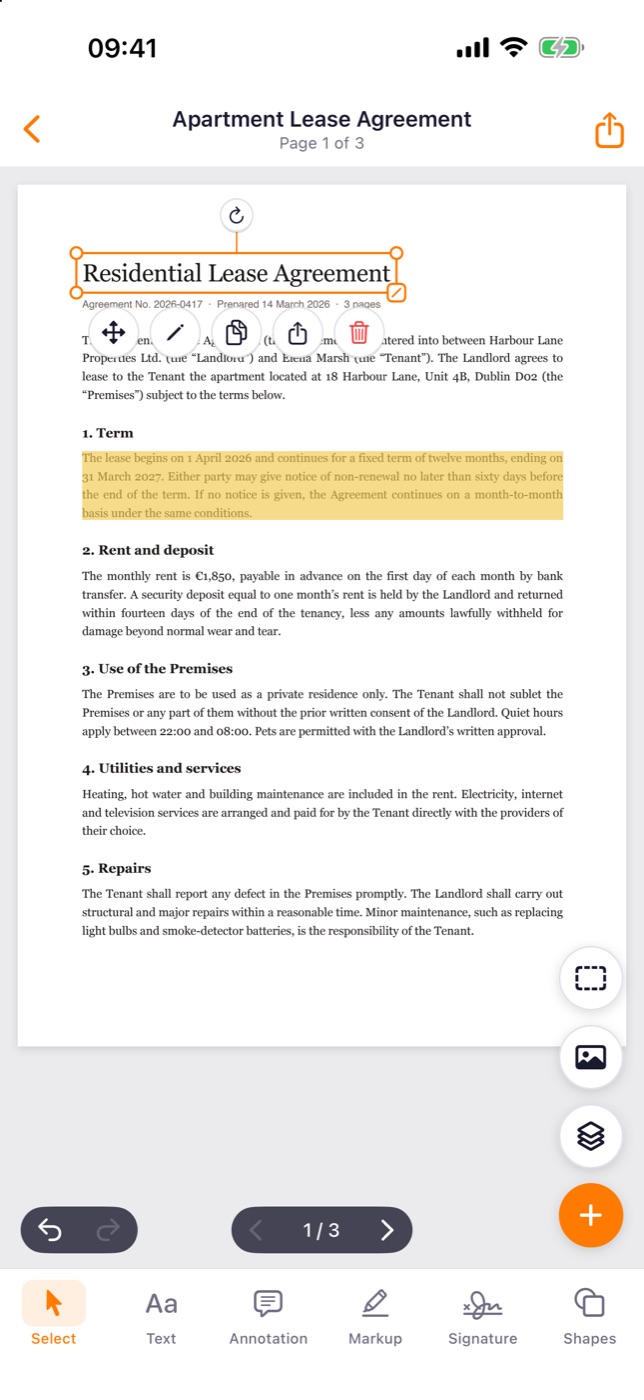
- Look at the column of round buttons on the right side of the page. On a page that is a picture, an extra text recognition button appears there. Tap it.
- The Text recognition sheet asks what to do with the picture. Tap Recognize text only.
- Wait for the message that the lines were recognised and the text is now selectable and searchable. The picture itself does not change.
- With the Select tool active, press and hold a line. The line is copied to the clipboard and the app shows Text copied.
- Paste it into Notes, a message or any other app.
Get the whole page as editable text
- Tap the text recognition button again and choose Create page from picture.
- The app adds a new page right after the picture, with the recognised lines as real text.
- Tap a line and then the pencil button to correct it, or tap the share button under the line to send it as text.
The picture page stays in the document. If you no longer need it, tap the document title, select that page in the Pages sheet and tap Delete.
Text from a paper document
For paper, use Scan → Scan with camera. Camera scans are recognised automatically while the document is created, so you can press and hold a line right away, and these pages do not count towards the daily OCR limit.
Tips and common problems
- Wrong characters or missing text. Open Settings → OCR languages and tick the languages used in your documents. Only the ticked languages are recognised. More languages make recognition slightly slower, so keep the list short.
- No text recognition button. It shows only on pages that are essentially one picture. A normal PDF page already has text: just press and hold a line.
- “No text found on this page”. The photo is too blurry or too dark. Retake it in even light, with the text filling the frame.
- You need several lines. Copying works line by line. For a long passage, create a page from the picture and work with the editable text there.
What is available without Pro
The free plan recognises 3 pages a day with the text recognition button. A page is counted only when text was actually found. Copying lines and searching the Library are not limited. SmartScan Pro runs OCR without limits.
Does OCR work offline?
Yes. Recognition is done on the iPhone, so photos of documents are not sent to a server.
Which languages are supported?
The list in Settings → OCR languages shows what your iPhone supports. English is on by default; add the others you need.
Can I find a document by the text inside it?
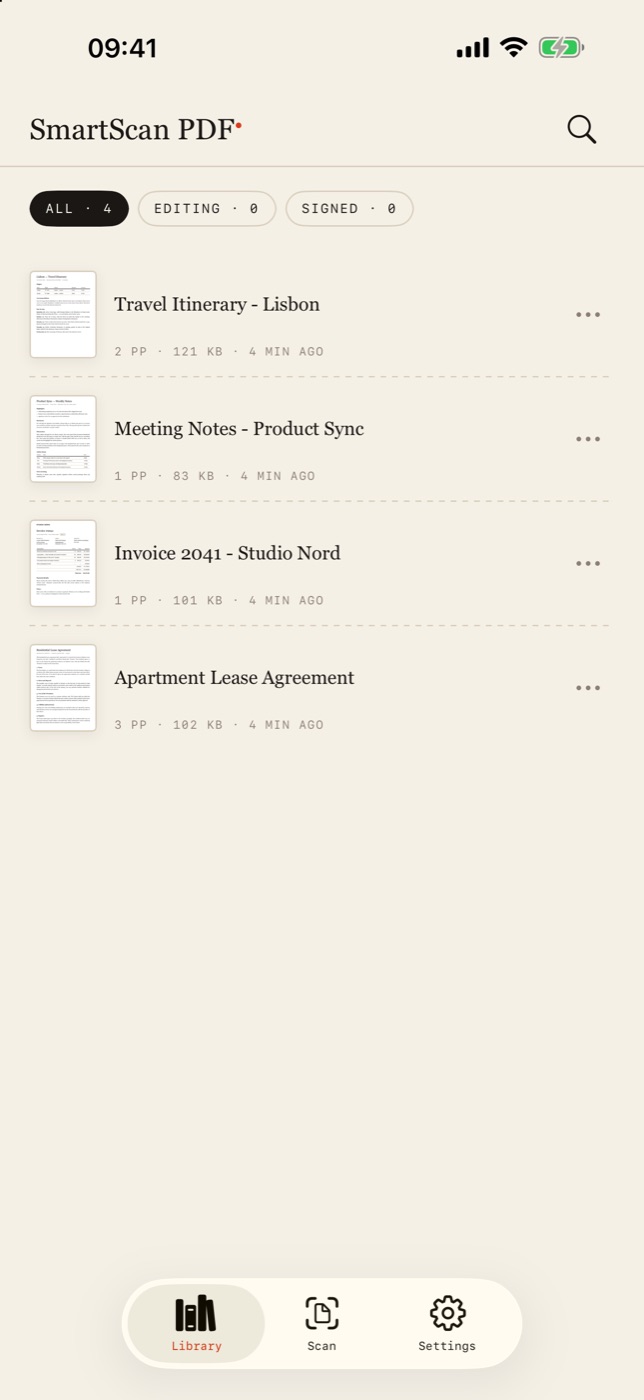
Yes. Tap the magnifier in the Library: search looks through document titles and recognised text.
Stop retyping what the camera can read. Download SmartScan PDF on the App Store.