 North
How to Track Expenses on iPhone: First Steps in 1cent
To track expenses on iPhone with 1cent you need three habits: enter how much money is on your accounts right now, log every purchase with the round arrows button, and check Analytics once a week. A record is just an amount and a category; the app fills in the rest. Here is exactly what to tap.
Step 1. Set your account balances
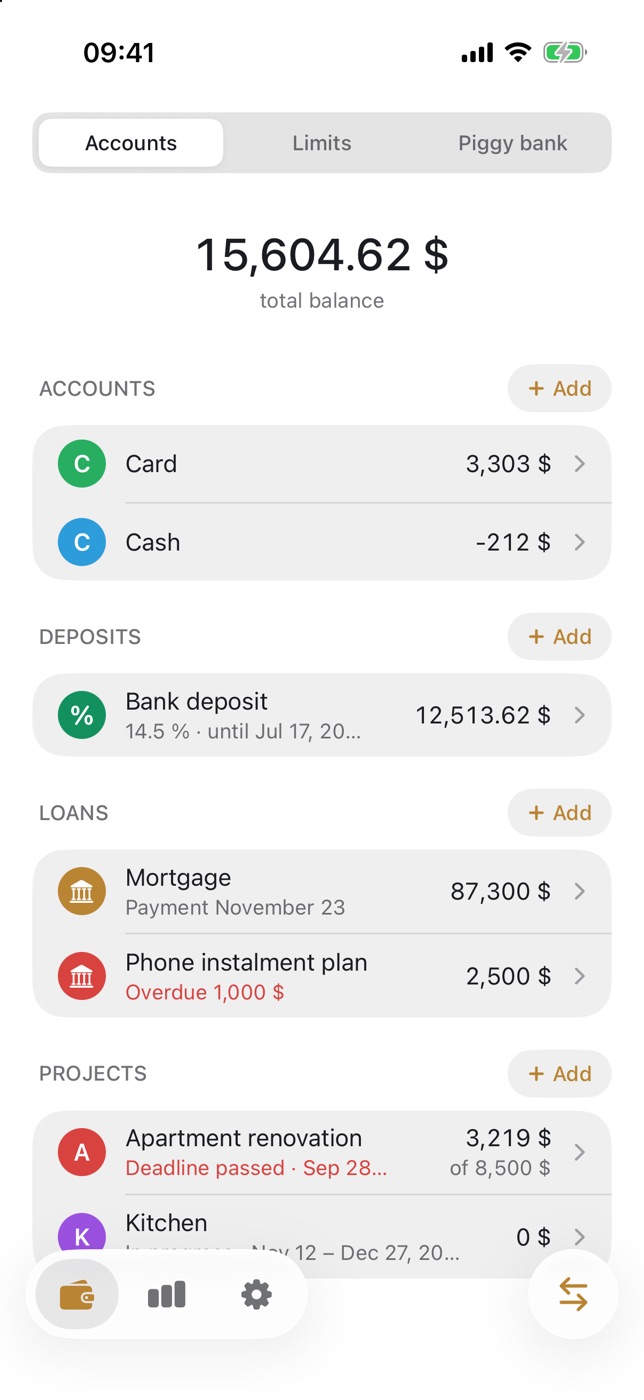
On first launch the app already has two accounts, “Card” and “Cash”, both with a zero balance. Start by entering the real amounts.
- Open the first tab (the wallet icon) and make sure “Accounts” is selected at the top.
- Tap an account, for example “Card”, then tap the pencil button in the top right corner.
- In the “Current balance” field type the amount you have on the card today and tap “SAVE”.
- To create another account, tap “+ Add” next to the “ACCOUNTS” header, fill in “Account name”, “Currency” and “Current balance”, pick a “Color” and tap “ADD”.
Step 2. Log an expense
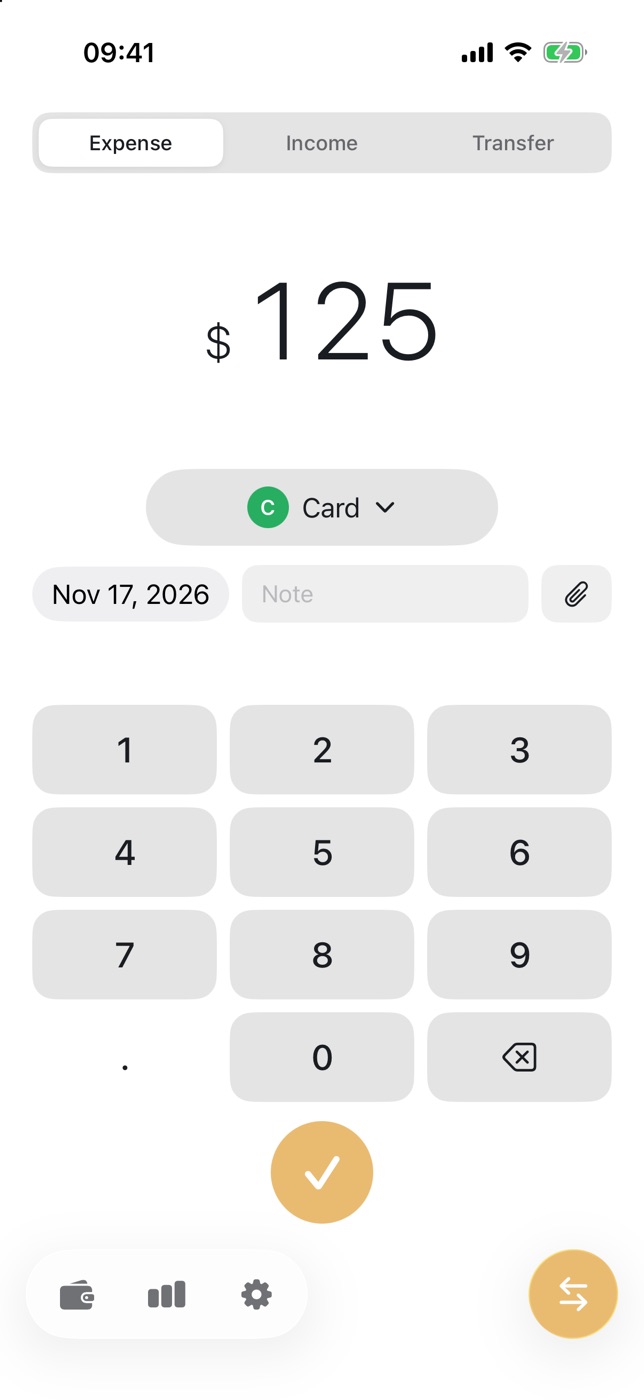
- Tap the round button with two arrows in the bottom right corner of the screen.
- Check that “Expense” is selected at the top.
- Type the amount on the number pad.
- Tap the account pill under the amount and choose where the money came from.
- Change the date if needed and tap “Note” to add a comment. Future dates cannot be selected.
- Tap the round checkmark button. The “Category” list opens: pick one, such as “Groceries” or “Transport”. A “Saved” message confirms the record.
Step 3. Log income and transfers
On the same screen switch to “Income”. Enter the amount, choose the income category in the left pill (“Salary” or “Side income”), choose where the money lands in the right pill, and tap the checkmark. To move money between your own accounts use “Transfer” and set the source and the destination. A transfer is neither an expense nor income, so your statistics stay accurate.
Step 4. See where the money went
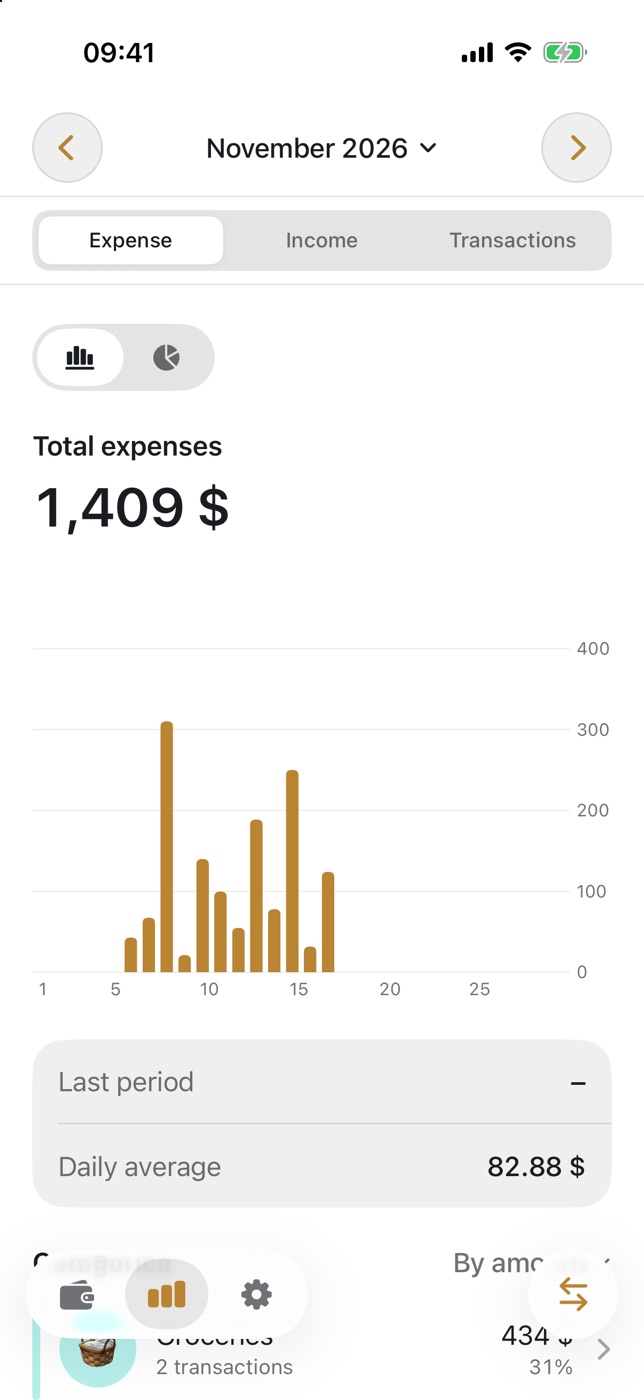
The second tab (the bar chart icon) is Analytics. Under “Expense” you get “Total expenses” for the month, a chart by day, “Daily average” and a list of categories with their share. The arrows at the top switch months, and “Transactions” lists every record by day.
Tips and common mistakes
- Do not edit the balance instead of logging. Changing an account balance does not reach analytics or limits. Record purchases as transactions.
- Log right away. In Settings → “Reminders” turn on “Daily reminder” and set the “Time” so an evening check never slips.
- Do not record a transfer as an expense. Withdrawing cash from a card is a “Transfer” from “Card” to “Cash”.
- Add your own categories. The “Category” list has an “Add” button; the full list lives in Settings → “Expense categories”.
FAQ
How do I fix or delete a record?
Open Analytics → “Transactions” and tap the record. In the form you can change the amount, account, category, date and note, or tap “Delete transaction”.
How many accounts are free?
The free version includes two accounts in your default currency. More accounts, accounts in other currencies and receipt attachments require the Premium subscription. Monthly analytics is free; the yearly view and custom periods are part of Premium.
How do I keep my data safe?
In Settings → “Data” tap “Save backup to file”, which is free. iCloud backups are part of Premium.
1cent is a personal finance app by NorthAlliance.