 North
How to Set a Monthly Budget with Category Spending Limits
In 1cent a monthly budget is built from limits: you give an expense category an amount, and the app shows how much of it is left and turns red when you overspend. Limits live on the first tab under “Limits”; to set one, tap a category, enter the amount and save.
How to set a limit for a category
- Open the first tab (the wallet icon) and switch from “Accounts” to “Limits” at the top.
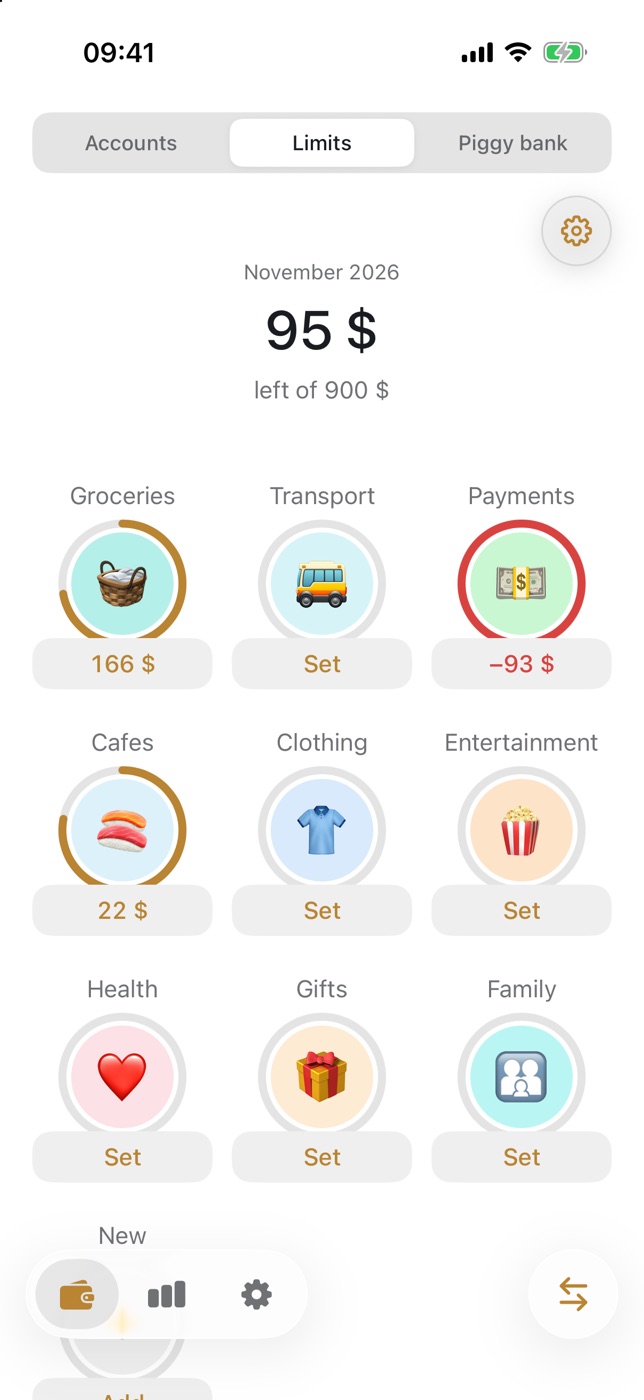
- You will see a grid of expense categories: “Groceries”, “Transport”, “Cafes” and others. A category without a limit shows “Set” below it.
- Tap a category. A card titled “Limit: …” with the category name opens.
- Type the amount for the period and tap “SAVE”.
The category now shows what is left of the limit, and the ring around its icon fills up as you spend. If you go over, the ring and the number turn red and the number gets a minus sign: that is how much you overspent.
How to read the Limits screen
The current period is shown at the top, for example “November 2026”. The large number below it is how much is left across all categories that have a limit, and the “left of …” line shows the sum of those limits. If total spending exceeds it, the line changes to “over by …”. Categories without a limit are not included. Until you set a limit, the screen says “No monthly limit set yet”.
How to choose the period and start day
Payday rarely falls on the first of the month, so you can shift the start of your budget month.
- In “Limits” tap the round gear button in the top right to open “Limit settings”.
- In “Limit period” choose “Month” or “Week”.
- In “Starting from” choose the day: “First day of month” or any day from the 1st to the 28th. For a weekly period you pick a weekday.
When the month does not start on the 1st, the top of the screen shows the period dates instead of the month name.
How to change or remove a limit
Tap the category again: in the card you can enter a new amount and tap “SAVE”, or tap “Remove limit”. The same card has “Edit category” for the name and icon. To create a category, use the “New” cell at the end of the grid.
How to follow the budget during the month
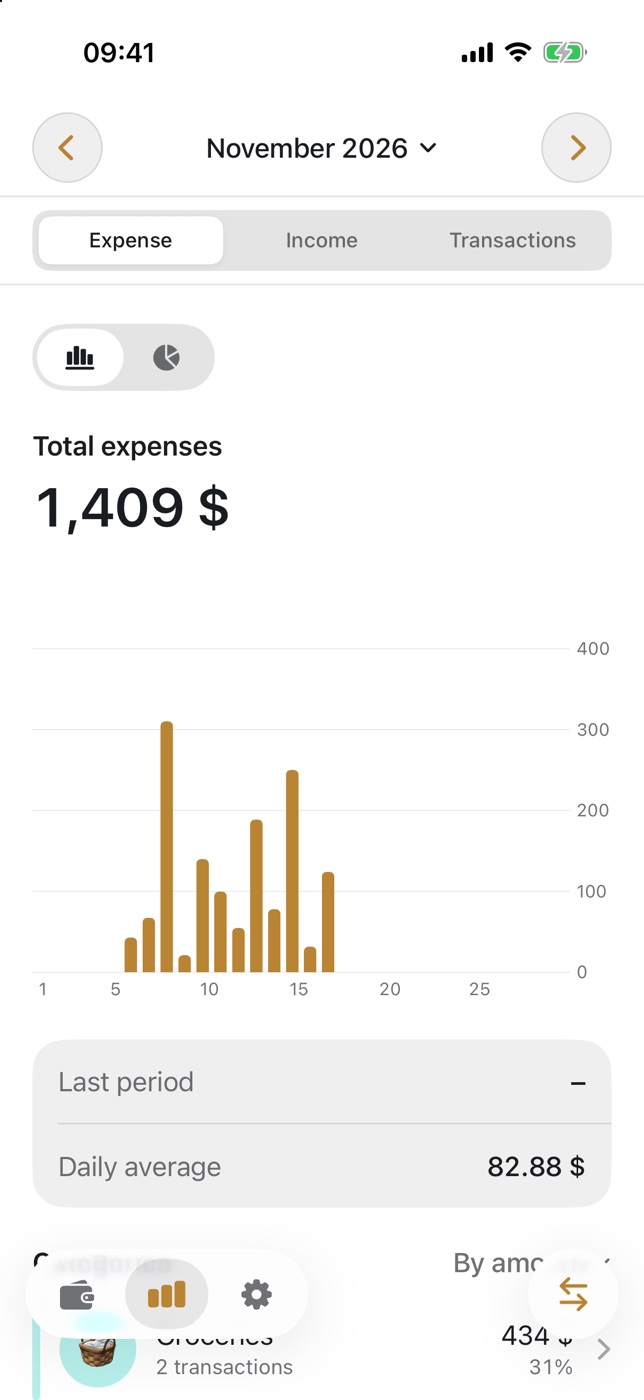
A limit goes down on its own whenever you log an expense in that category. For details open the second tab, Analytics: “Expense” shows spending by day and by category, and tapping a category opens its transactions.
Tips and common mistakes
- Start with one problem category. A limit on “Cafes” or “Entertainment” pays off sooner than trying to plan everything at once.
- Use your own numbers. Check in Analytics what the category cost you last month and set the limit slightly lower.
- Keep categories consistent. A limit only counts expenses logged in its own category: a lunch saved as “Groceries” will not touch the “Cafes” limit.
- Tie the period to payday. The start day in “Limit settings” saves you from doing the maths in your head.
FAQ
How many limits are free?
The free version includes one limit. With the Premium subscription you can set a limit for every category.
Which currency is a limit set in?
In your default currency. You choose it in Settings → “Default currency”, and its symbol is shown next to the amount field.
What happens to a limit in a new month?
The limit amount stays, and spending is counted again from zero for the new period, which starts on the day you chose.
1cent is a personal finance app by NorthAlliance.