 North
How to Save for a Goal: Piggy Banks and Deposits in 1cent
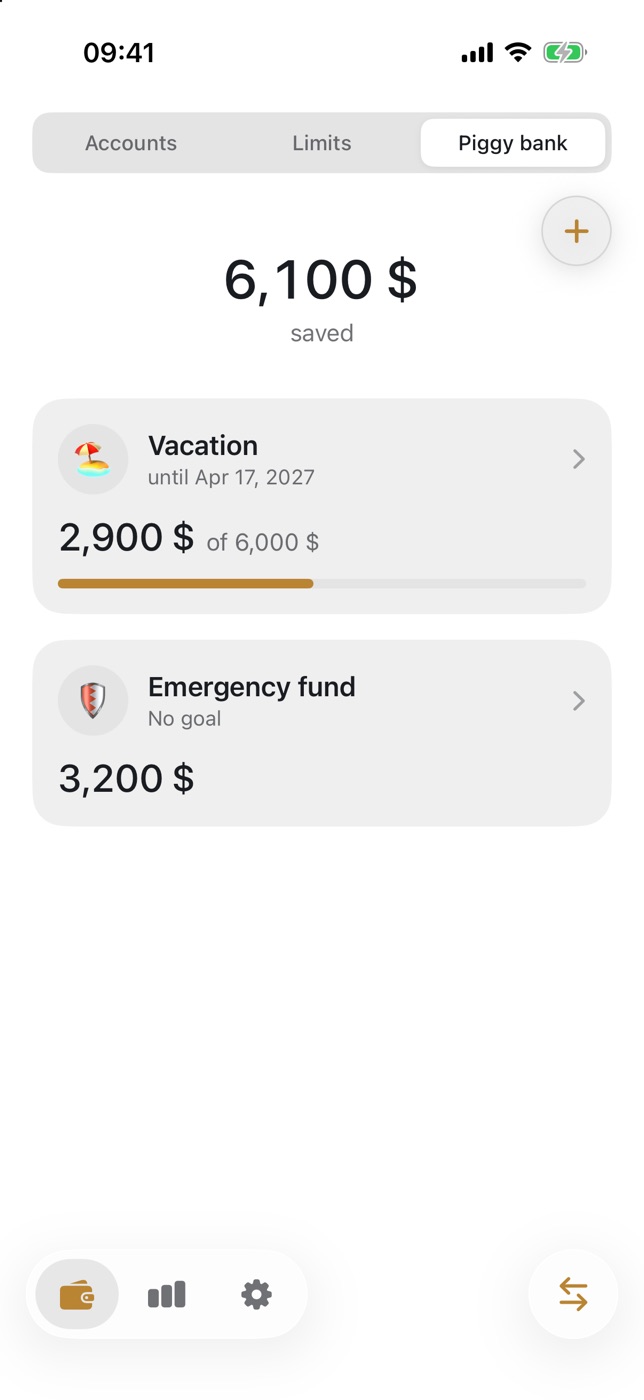
To save for a goal in 1cent, create a piggy bank: set an amount and a date, and the app shows how much is left to save and how much you need to put in each month. Money that sits in a bank earning interest is better tracked as a deposit, where the app calculates accrued interest and the amount at maturity.
How to create a piggy bank
- Open the first tab (the wallet icon) and choose “Piggy bank” at the top.
- If you have none yet, tap “ADD PIGGY BANK”. Otherwise tap the round “+” button in the top right.
- In the “New piggy bank” form enter a “Name”, for example “Vacation”, and choose a picture under “Icon”.
- In the “Goal” field enter the amount you want to collect. You can leave it empty to get a piggy bank with no goal, for an emergency fund for instance.
- Under “Term” turn on “Save by date” and pick the date.
- Tap “ADD”.
How to top up a piggy bank
- Tap the piggy bank, then tap “TOP UP”.
- Enter the amount.
- Under “From” keep “Debit from account” switched on and choose the account, so its balance goes down by that amount. With the switch off, the amount is added to the piggy bank and no account changes.
- Check the date and tap “TOP UP”.
There is a faster way too: on the add screen (the round arrows button) enter the amount in “Expense” mode, tap the checkmark and choose “To piggy bank” in the “Category” list. If you have several, the app asks “Which piggy bank?”.
The piggy bank screen shows “Left to save”, “Term” and “Needed per month”, which is the remaining amount divided by the months left until the date. Below it is the “History” of top-ups and withdrawals. To take money out, tap “WITHDRAW”.
How to add a deposit
- On the first tab, under “Accounts”, find the “DEPOSITS” block and tap “+ Add”.
- In the “New deposit” form fill in “Name”, “Amount” and “Rate, % per year”.
- Under “Term” set the “Open” and “End” dates and turn on “Monthly compounding” if it applies.
- Tap “ADD”.
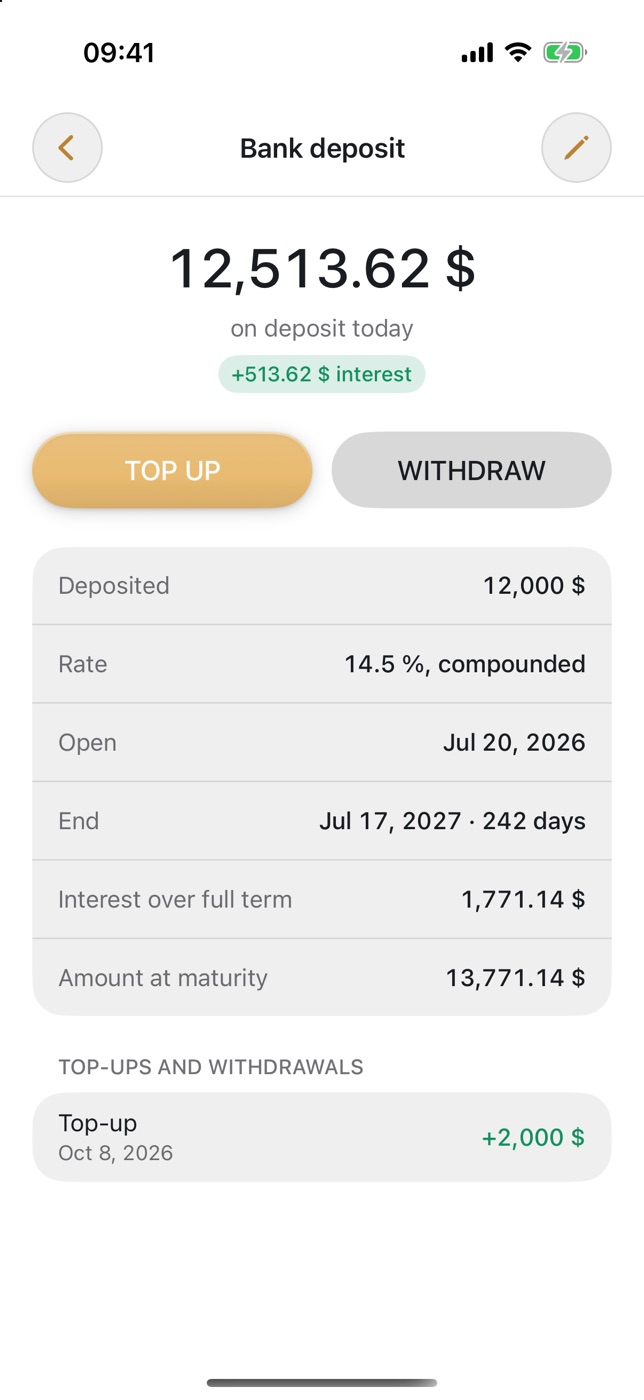
The deposit screen shows the amount “on deposit today” with accrued interest, and a table with “Deposited”, “Rate”, “Interest over full term” and “Amount at maturity”. The “TOP UP” and “WITHDRAW” buttons work the same way as for a piggy bank.
Tips and common mistakes
- Save on payday. When you log income, the right-hand pill opens “Credit to”, where you can pick a piggy bank or a deposit straight away.
- Turn on a reminder. In Settings → “Reminders” → “Deposits” switch on “Top up deposit” and set “Day of month” and “Time”.
- Mind the “Debit from account” switch. If it is off, the money stays on the account and your total balance drifts away from reality.
- Check interest against your bank. Deposit interest is the app’s calculation from the rate and dates you entered; your bank may calculate it differently.
FAQ
What is the difference between a piggy bank and a deposit?
A piggy bank is a goal: an amount, a deadline and progress. A deposit is a savings product with a rate: the app calculates interest and the amount at maturity. You can keep both at the same time.
How many piggy banks and deposits are free?
One piggy bank and one deposit. A second piggy bank, a second deposit and piggy banks in other currencies require the Premium subscription.
Will the app tell me when I reach the goal?
Yes. When the piggy bank holds the target amount you get a “Goal reached” notification. It is controlled in Settings → “Reminders” → “Goals”.
1cent is a personal finance app by NorthAlliance.