 North
How to Track a Loan and Its Payments on iPhone with Reminders
To track a loan in 1cent, add it on the Accounts tab under “Loans”: enter the total amount, the current balance, the monthly payment, the payment date and the term. The app builds the schedule, shows what you still owe and reminds you two days before, a day before and on the payment day. Each instalment is recorded with the “Make payment” button.
Step 1. Add the loan
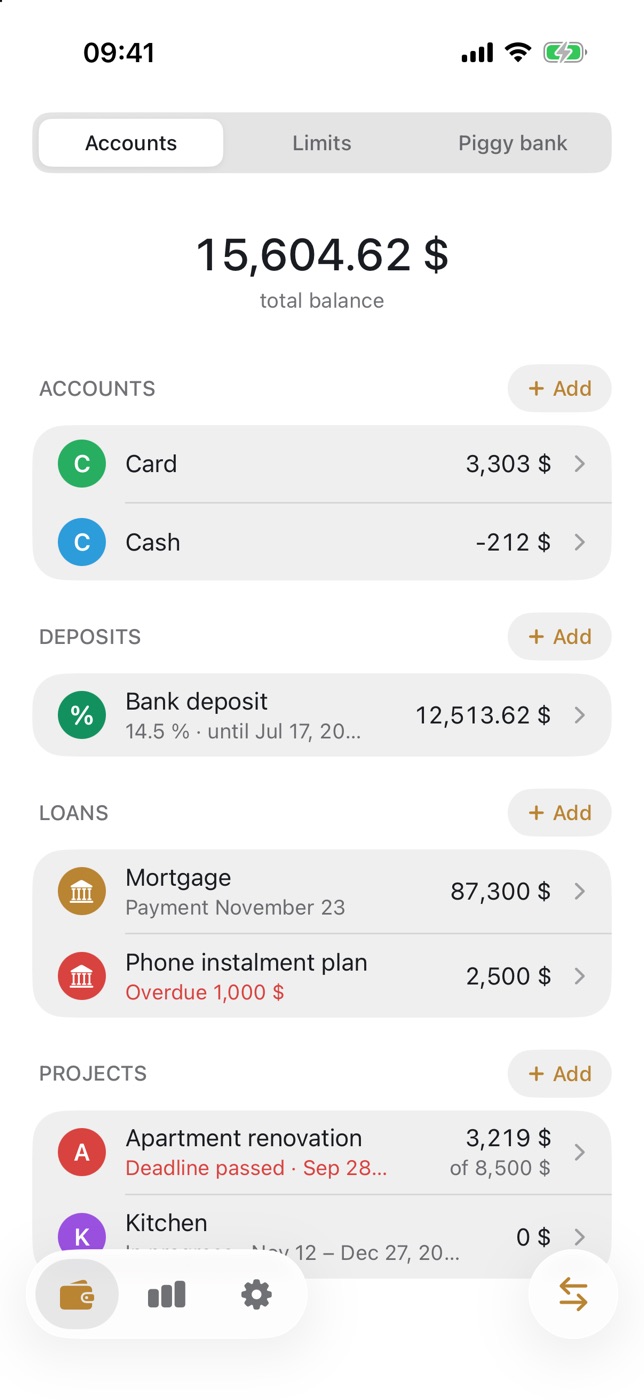
- Open the first tab (the wallet icon), stay on “Accounts” and scroll to the “LOANS” block.
- Tap “+ Add” to open the “Add loan” form.
- Fill in “Name” (for example, “Mortgage”) and “Total loan amount”.
- If part of it is already repaid, enter “Loan balance”. An empty field means the balance equals the total.
- Enter “Monthly payment”. “Rate, % per year” is optional.
- Under “Payment date” choose the day of the month, and under “Loan term” set “Start” and “End”.
- Tap “ADD”.
Step 2. Record payments
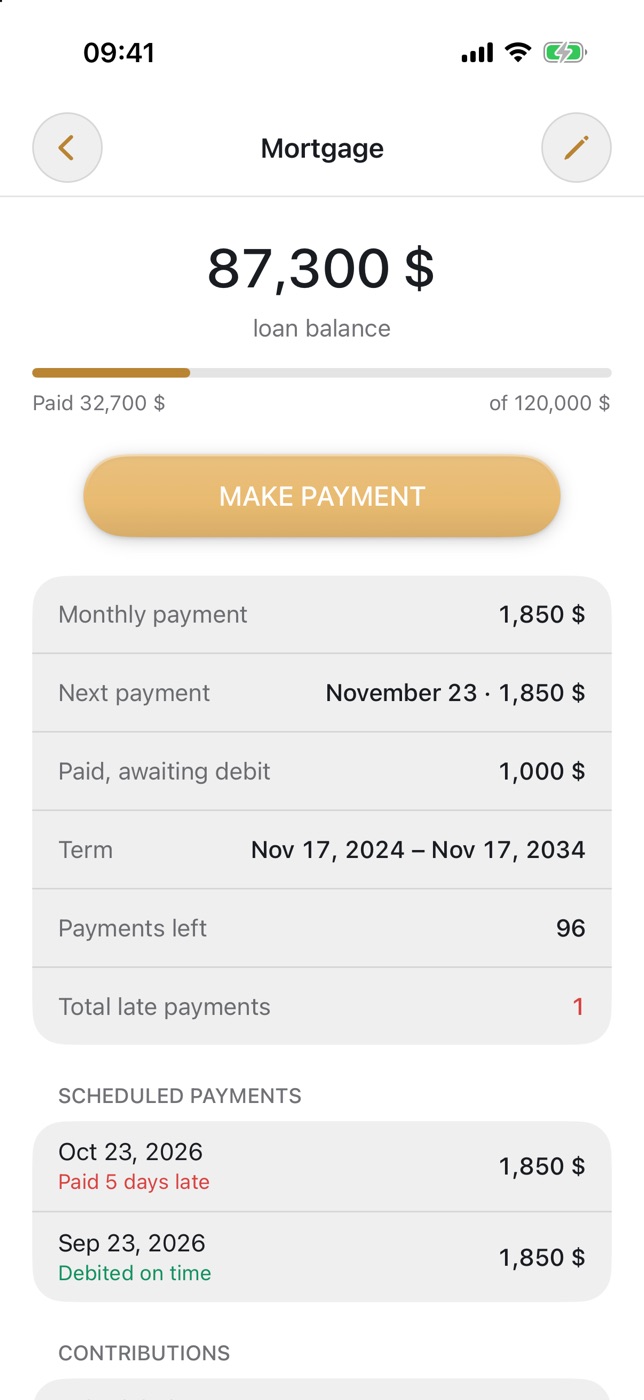
- Tap the loan in the list. The top of the screen shows the “loan balance” and a “Paid … of …” progress bar.
- Tap “MAKE PAYMENT”.
- Choose the type: “Payment” is a regular scheduled instalment, “Partial” is a partial early repayment, “Full” is a full early repayment.
- Enter the amount, check the date and tap “CONTRIBUTE”.
A regular payment lowers the balance on the scheduled payment date; until then it appears in the “Paid, awaiting debit” row. An early repayment lowers the balance immediately, on the day you record it. When you choose “Full”, the remaining balance is filled in for you.
Step 3. Take the payment from an account
The “Make payment” button changes the loan only. To take the money from your card at the same time, log the payment as an expense: tap the round arrows button, enter the amount, pick the account, tap the checkmark and choose “Loan payment” in the “Category” list. Then select the loan and the payment type and tap “SAVE”. Money leaves the account now, and the loan balance drops on the payment date.
Step 4. Set up reminders
- Open the gear tab, Settings, and tap “Reminders”.
- In the “Loans” block make sure the “Loan payments” switch is on.
- Keep the options you need: “2 days before”, “1 day before”, “On the payment day”.
- In the “Time” row choose the hour that suits you.
If the payment is already made, you will not get a reminder for it. When notifications are blocked in the system, this screen shows a “Notifications are off in iOS Settings” card with an “OPEN SETTINGS” button.
Tips and common mistakes
- Match the balance with your bank. The app does not connect to the bank and calculates the balance from your records, so take the starting figure from your banking app.
- Do not record a payment twice. Use one method: either “Make payment” or an expense with the “Loan payment” category.
- Payment dates on the 29th–31st. If a month has no such day, the payment falls on its last day.
- Watch “Total late payments”. If late payments repeat, move the reminder earlier.
FAQ
How many loans are free?
The first loan is free. A second one and any further loans, as well as a loan in a currency other than your default one, require the Premium subscription.
Can I attach a receipt to a payment?
Yes, the payment form has a “Receipt or invoice” block. Attachments are part of Premium.
What happens when the loan is repaid?
It gets the “Paid off” status in the list, and the loan screen shows “loan paid off” instead of a balance. The payment history is kept.
1cent is a personal finance app by NorthAlliance.